Screen recordings that look designed. Not just recorded.
Screen Famous records your screen, camera and mic, then does the magic for you: automatic zooms on every click, a cursor that glides, a background and padding that make any window look like a product shot. Export MP4 or GIF. Buy it once.
- Notarized by Apple
- Free to try, no account
- Nothing leaves your Mac
Why Screen Famous
Record, don't edit
Zooms, cursor smoothing, backgrounds and rounded corners are applied for you, from the clicks and movements the app already saw. A demo that used to take an afternoon in an editor is done when you press stop.
Buy it once
Most screen recorders and subtitle tools rent for a monthly fee, forever. Screen Famous is one payment for a lifetime license on 2 Macs. It keeps working for years, and so does the version you have.
Nothing leaves your Mac
A native Mac app: recording, rendering and export all happen on your machine. No upload, no account, no cloud render queue — and your recordings are yours.
Up and running in three steps
- 1
Record
Pick a display, a window or an area. Add your camera, your mic and system audio if you want them. Press record — a small floating HUD stays out of the way.
- 2
Customize
Stop, and the project opens in the editor with the zooms, cursor and background already applied. Trim, split, drag in an image, a GIF or a sound, change the camera layout — everything is a setting, nothing is destructive.
- 3
Export
MP4 for a product page, a pull request or a client — or GIF for a README, a chat or a tweet. The preview and the export render through the same pipeline, so what you see is what you ship.
Wow your audience
The finishing touches that make a screen recording look produced, built in.
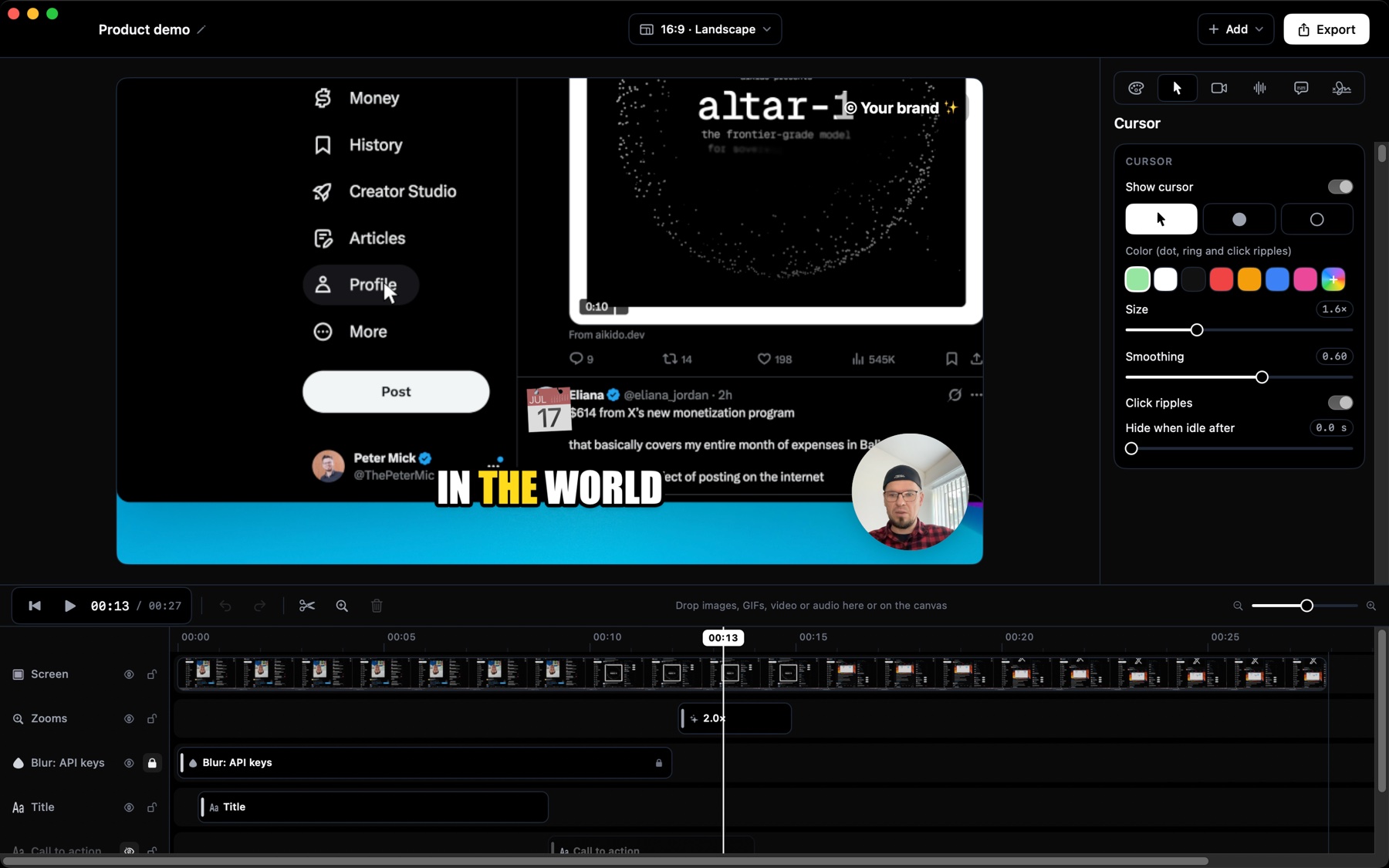
It follows the action for you
Every click becomes a smooth zoom in, hold and zoom out, with a cursor that glides instead of jitters.
- Automatic zooms from your clicks
- Smooth cursor and click ripples
- Adjust any zoom on the timeline
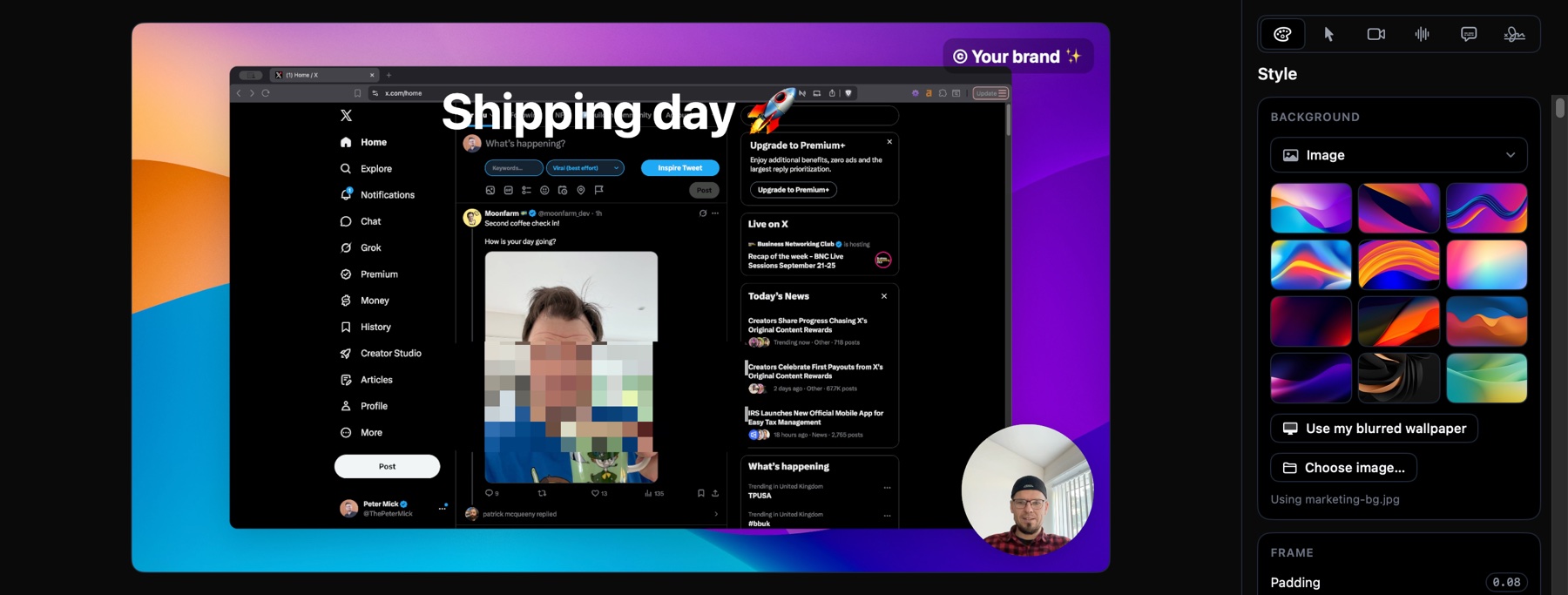
Impressive backgrounds
Put your recording on a backdrop that looks designed, in one click.
- Twelve pre-loaded backgrounds
- Your own image, gradient or solid color
- Padding, rounded corners and shadow
- Fits 16:9, 1:1 and 9:16
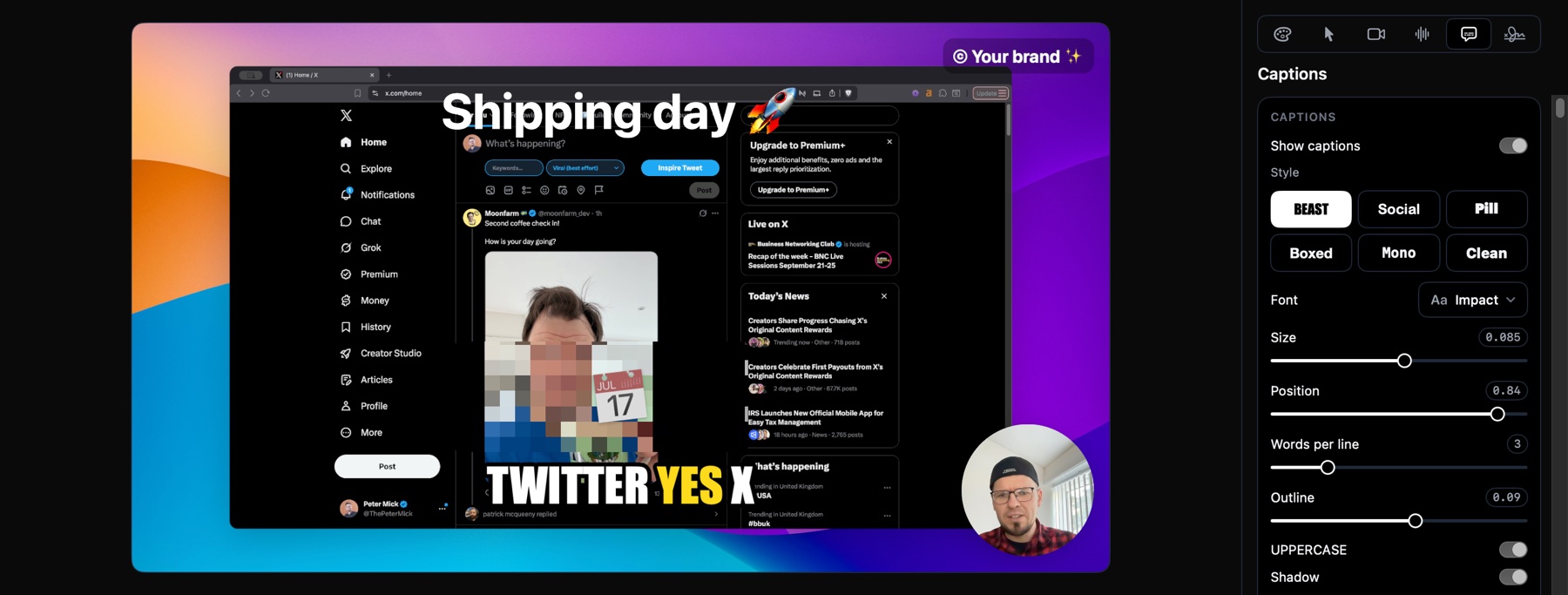
Custom subtitles
Captions made on your Mac from what you said, styled for the feed: MrBeast, TikTok style and more.
- Bold creator styles, ready to go
- Current word highlight
- Emoji for maximum engagement
- Edit the transcript, export SRT
- Nothing is uploaded
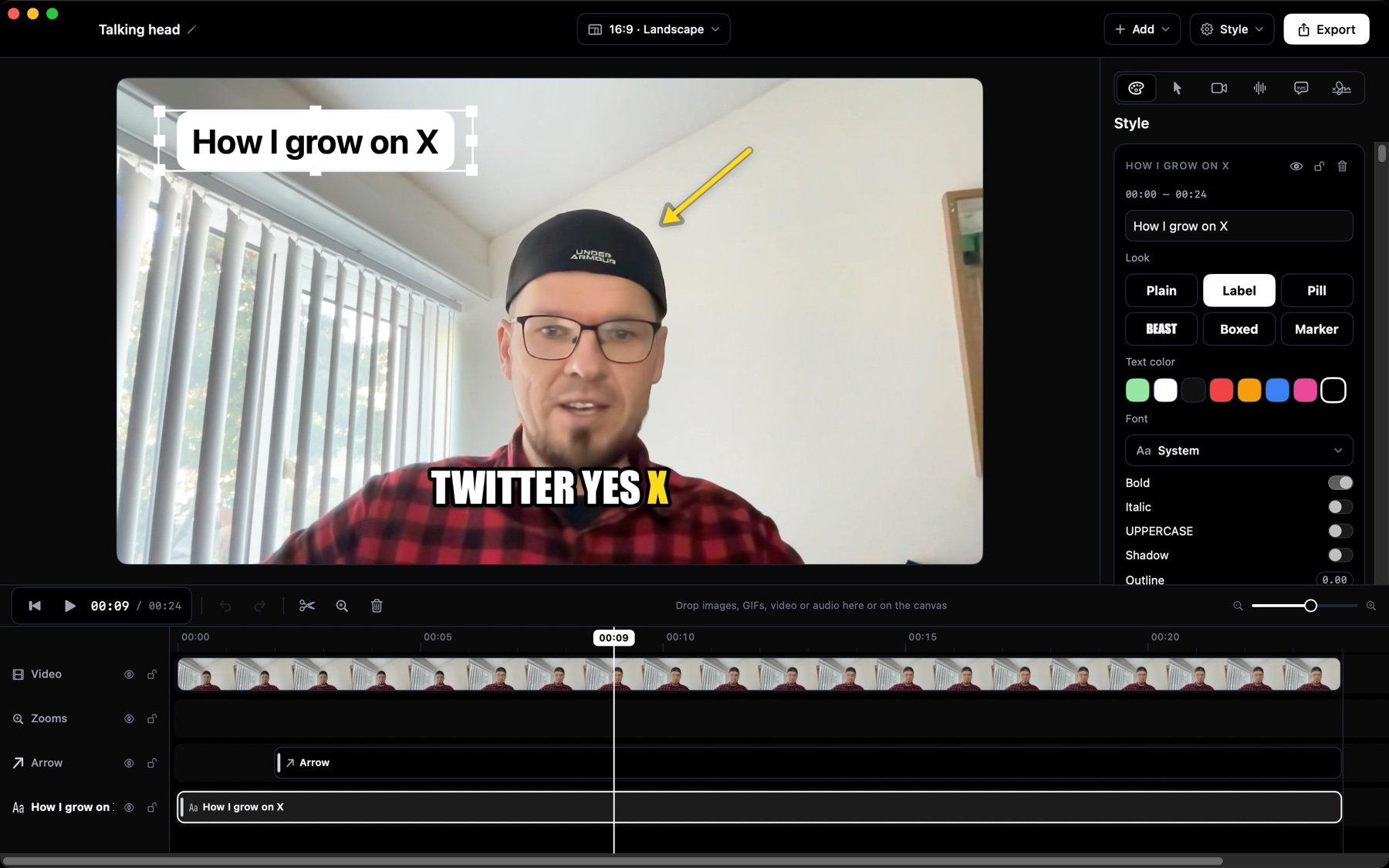
A video editor too
Open any video, from your phone, a camera or another app, and give it the same treatment: subtitles in your style, text, arrows, zooms, your watermark.
- Open any MP4 or MOV, phone clips included
- Subtitles from what's said, in one click
- Text labels, arrows and shapes
- Your saved style, applied in one click
- One payment, not another monthly subscription
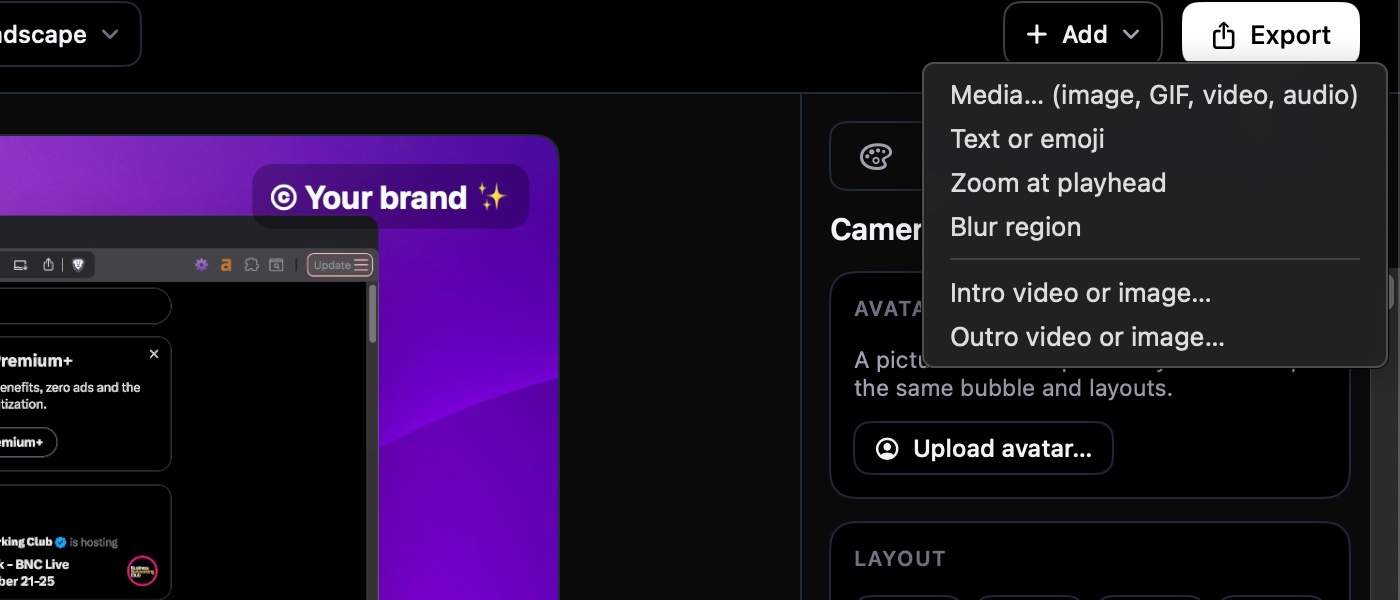
Add any media to the timeline
Drop in images, GIFs, video and audio, or add text and emoji. Everything gets its own layer you can move, trim and animate.
- Images, GIFs, video and audio
- Text and emoji overlays
- Drag it where it belongs, trim it on the timeline
- Speed, volume, fades and mute per item
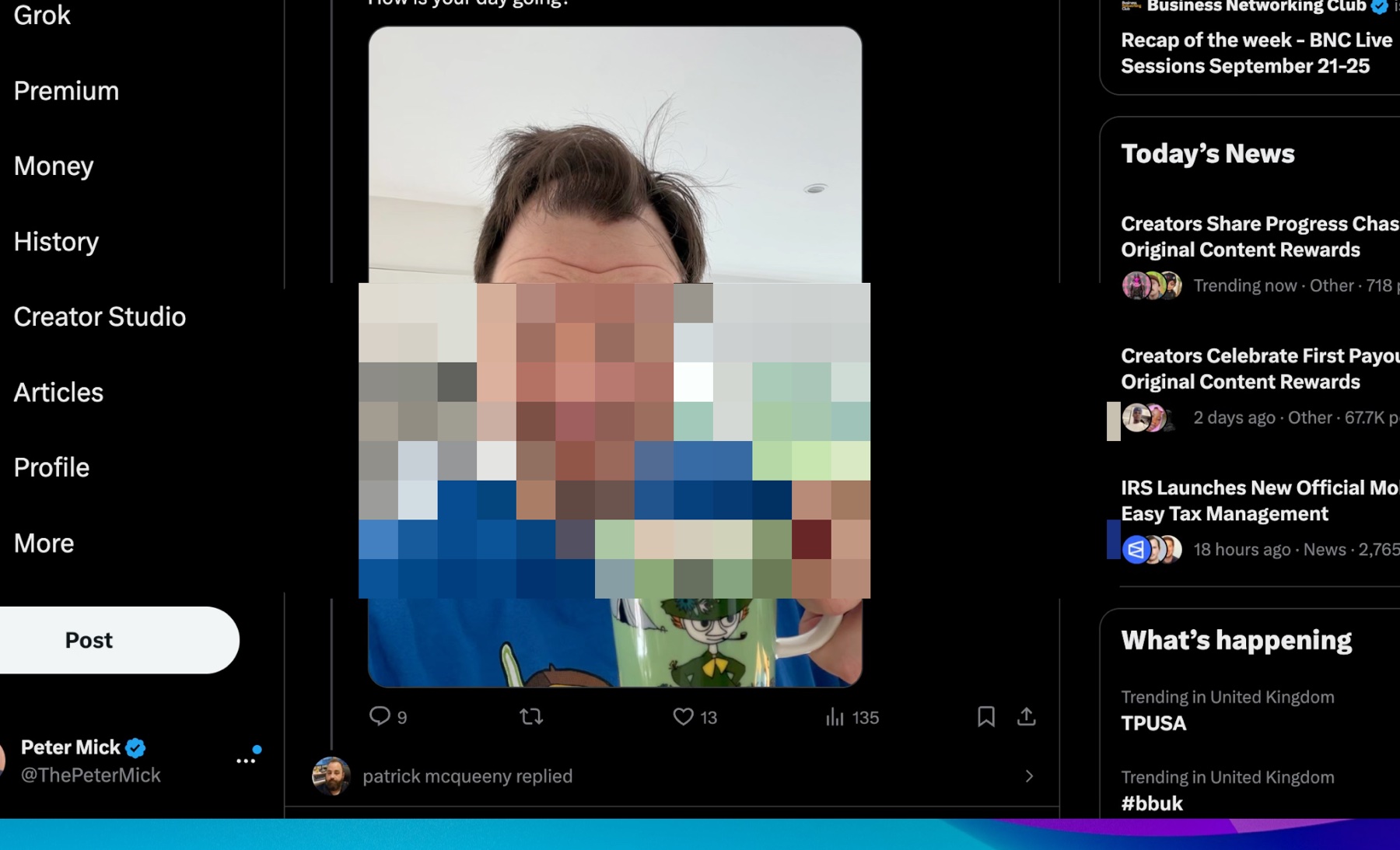
Blur out sensitive areas
Passwords, emails, API keys, customer names: cover them before you share.
- Blur or pixelate any region
- Set exactly when it starts and ends
- Stays in place when the picture zooms
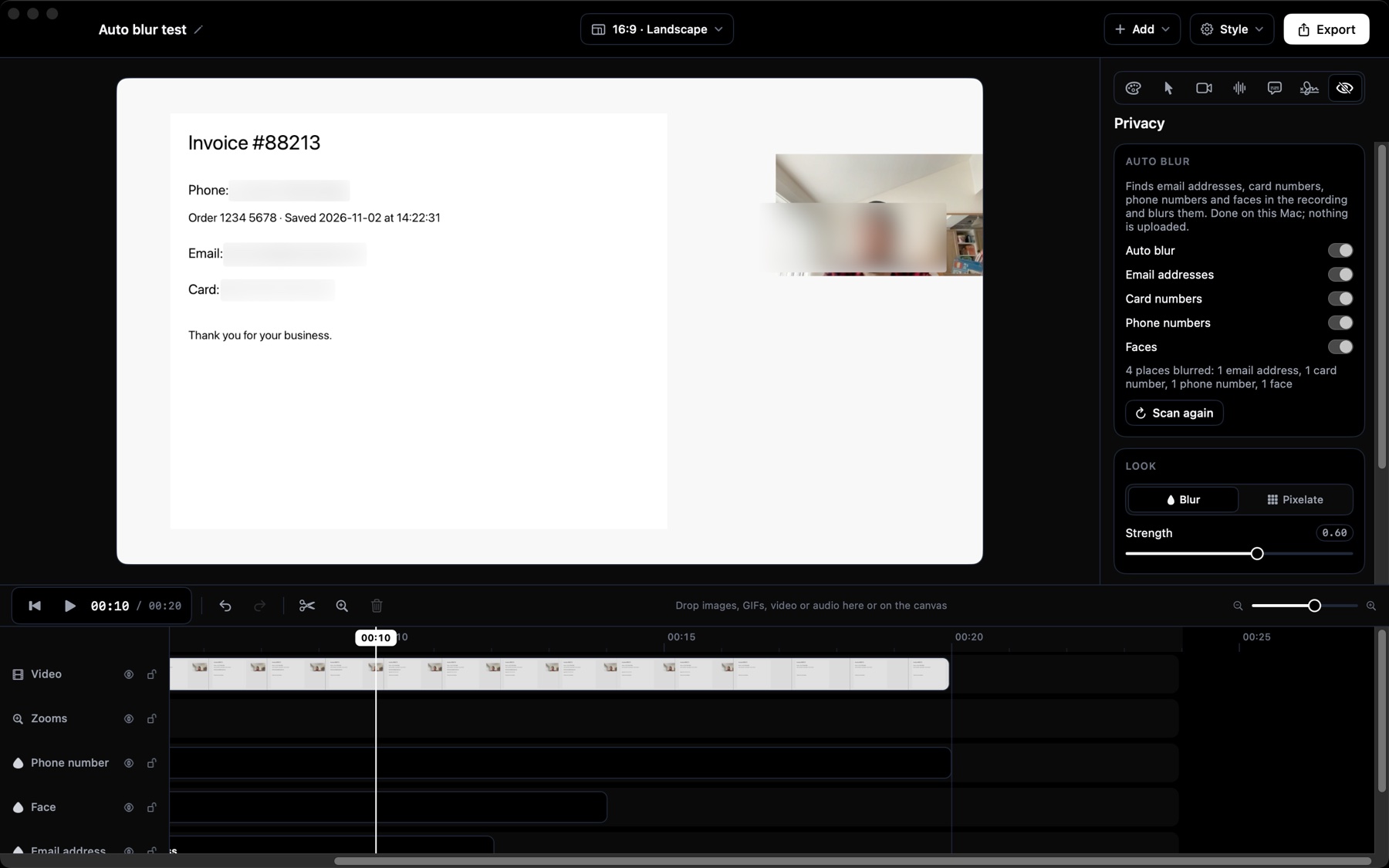
Blur what should stay private, automatically
Screen Famous finds email addresses, card numbers, phone numbers and faces in the recording and blurs them for you. Done on your Mac; nothing is uploaded.
- Tick what to find: email addresses, card numbers, phone numbers, faces
- Blur or pixelate, as strong as you like
- Every region is yours to move, trim or delete, and you can add your own
- Found on your Mac, never sent anywhere
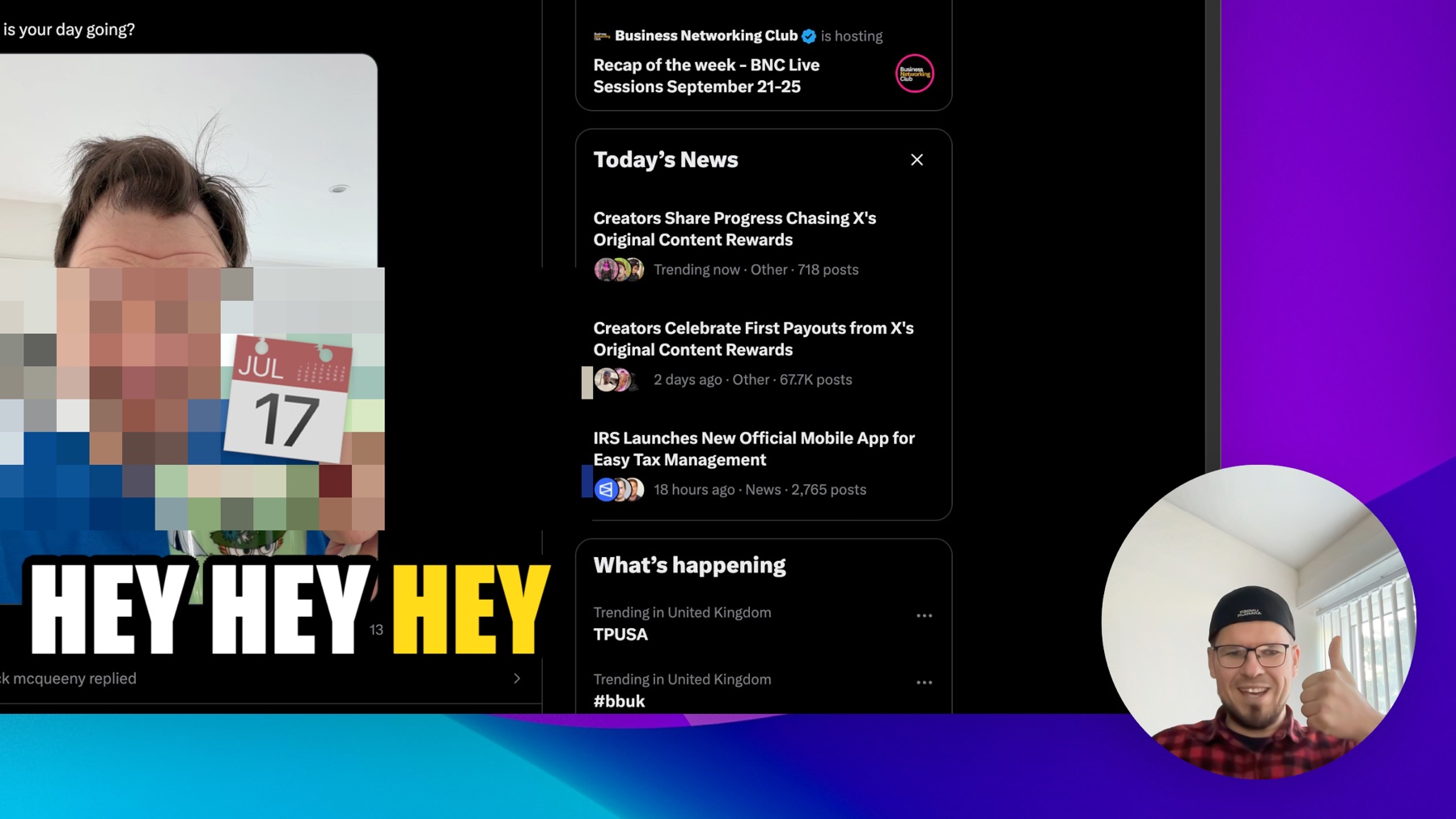
You, in the picture
Your camera rides along as a bubble, side by side or full screen, and you can change it at any moment of the video.
- Camera bubble in any corner
- Switch layouts along the timeline
- Microphone and system audio, mixed separately
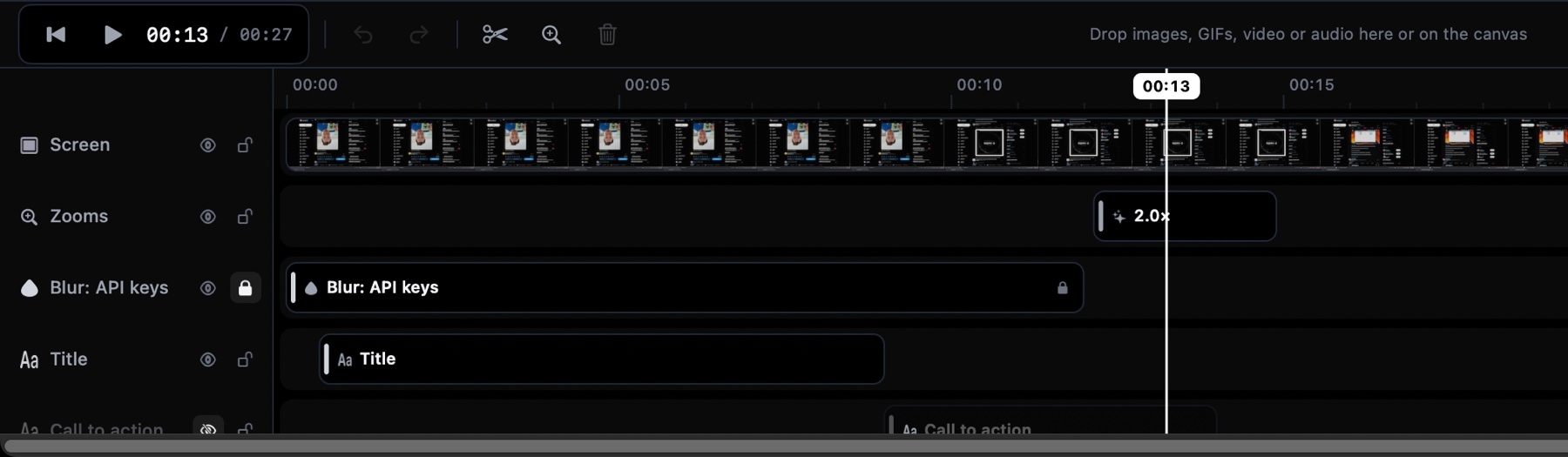
Professional layers
Every element sits on its own lane, like in a video editor, without the learning curve.
- Hide a layer to try the video without it
- Lock a layer so it cannot move by accident
- Mute, reorder and trim each one
- Unlimited undo
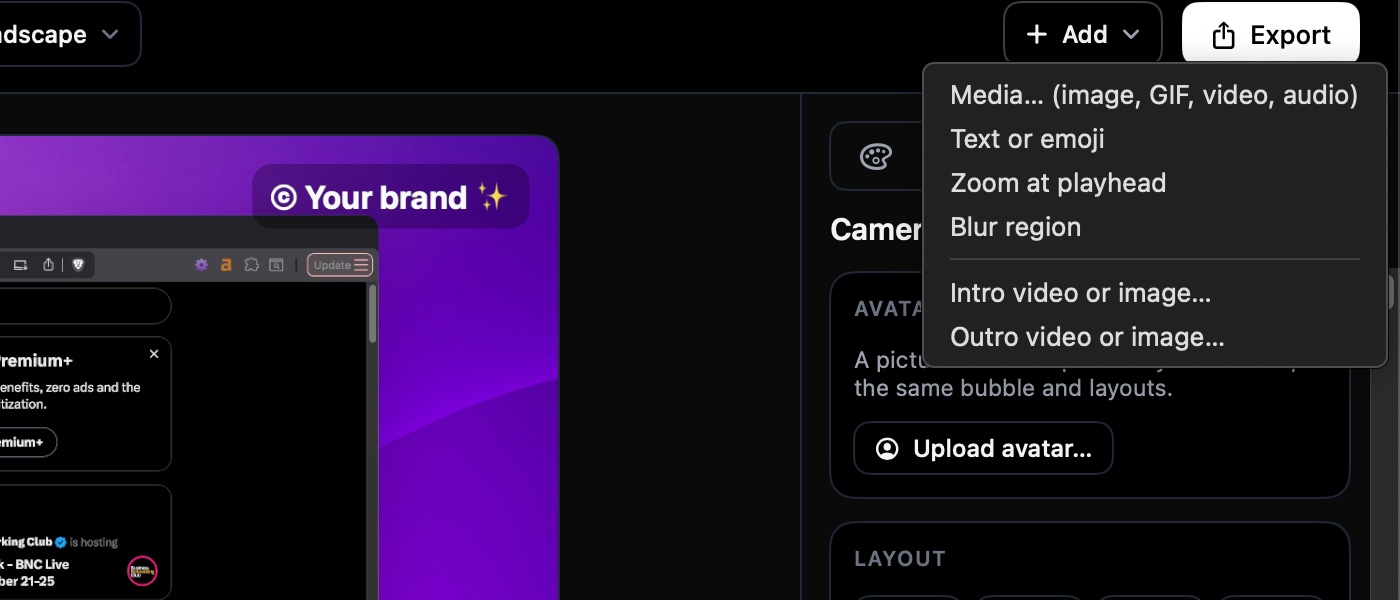
Add intro and outro videos in a click
Put your logo sting in front and your call to action at the end. Cut the recording and pull the halves apart for a clip in the middle. The rest of the video moves over by itself.
- Video or image, full screen
- Plays before or after the recording
- Its own sound, or muted
- Or in the middle: drag the two halves of a cut apart and drop a clip between them
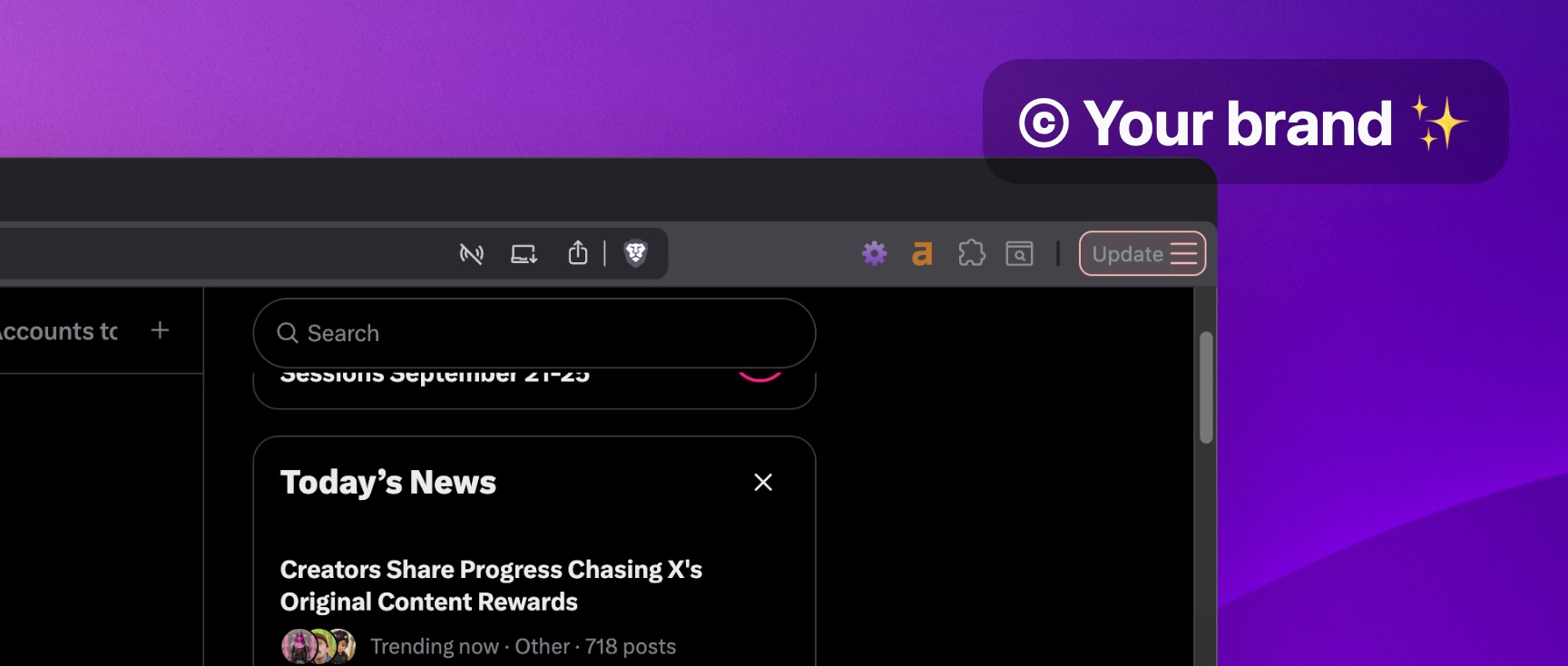
Your brand on every video
A license removes our watermark and lets you add your own.
- Remove or customize watermark
- Your text, emoji and logo
- Font, colors, background box
- Nine positions
Everything a screen recorder should do
And customize every detail to perfection.
Auto zoom
Every click becomes a smooth zoom in, hold, and zoom out. Tweak each one on the timeline, or turn it off for a section.
Cursor that glides
The real cursor is jittery. The recorded one is smoothed, resized and highlighted, with a click effect you can pick.
Backgrounds and padding
Wallpaper, gradient, solid color or an image of your own, with padding, rounded corners and a shadow around the recording.
Camera and mic
Your webcam as a bubble or a panel, in any corner, with the mic and system audio on separate tracks.
Trim, split, drag in media
Cut the fumbling at the start, split a long take, drop in an image, a GIF, a video or a sound right on the timeline. Cut a recording, drag the halves apart and drop your own clip in the gap. Blocks snap to each other's edges, the cuts and the playhead; hold Shift to move freely.
MP4 and GIF export
Share-ready MP4 up to 4K, or a compact GIF for READMEs and chats. Rendered on your Mac, as fast as it can go.
Non-destructive projects
A recording is a package: the raw screen, camera and audio files plus one small manifest. Change your mind about anything, any time.
Updates that install themselves
Sparkle checks on launch and installs new versions in place. Notarized by Apple, so macOS opens it without a fuss.
Edit any video
File › Open Video… turns a clip from your phone or camera into a project: add subtitles, text, shapes and your watermark, then export.
Text, arrows and shapes
Labels on a rounded box, bold outlined text, arrows and circles that draw themselves on, and blur for anything private.
Your style, every time
New recordings start with your last background, watermark and caption look. Save a few as named styles and switch in one click.
Free mode
Record as much as you like for free. Exports are capped at 60 seconds and 1080p with a small watermark until you activate a license.
Auto blur
One switch finds email addresses, card numbers, phone numbers and faces and blurs them. On your Mac, with your own blur regions still yours to place.
One price. Yours forever.
No subscription, no monthly meter, no “contact sales”.
Free
- Every recording and editing feature
- Exports up to 60 seconds
- Up to 1080p with a small watermark
- No account, no time limit on recording
Pro
launch price
- Remove or customize watermark
- No length cap
- Export up to 4K
- 2 Macs on one license
- Lifetime updates included
Team
launch price
- Everything in Pro
- 10 Macs on one license
- Priority support
- Perfect for agencies
Questions, answered
How is this different from the built-in macOS screen recording?
The built-in recorder gives you a flat capture of the whole screen. Screen Famous records the same thing and then does the work that makes a demo watchable: zooming in on what you click, smoothing the cursor, framing the window on a background, mixing in your camera and mic. It also exports GIF, which macOS cannot.
Can I edit videos I didn't record with it?
Yes. File › Open Video… opens any MP4 or MOV, from your phone, a camera or another app. Add subtitles, text, arrows, zooms and your watermark, then export. Free mode exports up to 60 seconds; a license removes the limit.
Does it run on Intel Macs?
Yes. There is a native build for Apple Silicon and one for Intel, both on the download page and both notarized by Apple. It needs macOS 14 Sonoma or newer.
What does Free mode include?
Everything — recording, the editor, all the effects. The only differences are on export: free exports are limited to 60 seconds, 1080p and carry a small watermark. Activate a license and the same project exports in full, immediately.
How many Macs can I use it on?
Pro covers 2 Macs, Team covers 10. Activations are managed from the app's License settings, so a new Mac can take over a seat from an old one.
Do I have to pay for updates?
You don't — updates are included for life. Every release we ship is yours, at no extra cost, on the license you already have. Your license never expires either: the software stays yours.
Where do my recordings go?
Nowhere. A recording is a package on your disk containing the raw screen, camera and audio files plus a small project file. Nothing is uploaded, and there is no account. The only thing that ever talks to a server is the license check, which sends your key and your Mac's name.
Can I put a clip in the middle of a recording?
Yes. Split the recording where you want it, then drag the second half to the right on the Video layer: a gap opens between the halves, showing your background, and everything on the second half (zooms, blur regions, your camera changes) moves with it. Drop your clip in the gap on its own layer. Drag the half back to close the gap again. A project with a gap needs Screen Famous from the version that introduced it; an older version says so and offers the update. Blocks snap to the ends of other blocks, the cuts and the playhead as you drag (hold Shift to move freely; off in Settings › General).
Is there a refund policy?
14 days, no questions asked. We refund the full price minus the payment processor's non-refundable fees. If Screen Famous doesn't stick, you get the rest back.
What does auto blur find, and where does the recording go?
It reads the text on screen and looks for faces using Apple's on-device recognition, and covers email addresses, card numbers (checked the way a card terminal checks them), phone numbers and faces with a blur or a pixelation you choose. The recording never leaves your Mac. It is a helper, not a guarantee: check the result before you share, and add a blur region yourself for anything it missed. Those regions, and the ones it made, are ordinary blur regions you can move, trim or delete.